

$15
Buy A License
Buy A License
Buy A License
Add to Framer
Add to Framer
Add to Framer
Accessibility for Framer is the fastest way to catch the accessibility issues that quietly slip into Framer projects—before you publish. Run a scan, get clear, actionable results, jump directly to the problem layer, and apply fixes in minutes. It’s accessibility QA that feels like spell-check: quick, focused, and built into your workflow.
$29 - Purchase a License
Accessibility for Framer is a small part of the larger Accessibility Studio package. The Framer add on is only for ONE SITE, If you intend to scan more than one site, please consider purchasing a monthly license at accessibilitystud.io/pricing
Run a scan
Open Accessibility for Framer
Click Scan
Review the results list
Each issue is designed to be actionable:
what’s wrong
where it is (linked to a layer when possible)
how to fix it (action button or guided steps)
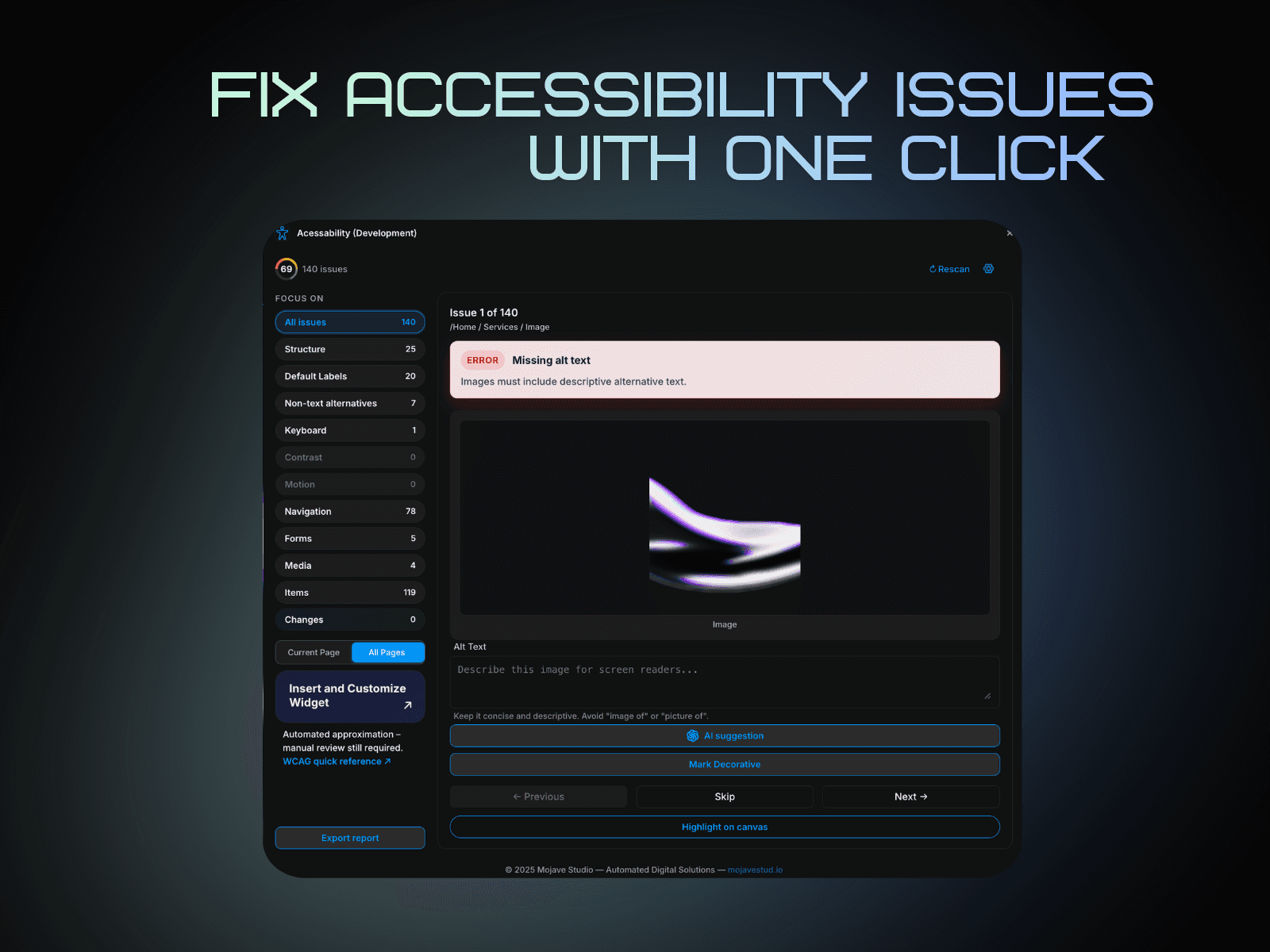
Fix issues fast
Click an issue
Use focus/select layer to jump to the element in the canvas
Fix it in Framer (or use the built-in action if available)
Re-scan to confirm the issue is cleared
Image alt text
Flags missing or weak alt text.
Fix: select the image → add meaningful alt text
Decorative image: mark decorative / empty alt
Heading structure
Flags missing H1, multiple H1s, and skipped heading levels.
Fix: ensure one clear H1; keep hierarchy in order (H1 → H2 → H3)
Visual headings without semantic tags
Flags text styled like a heading but not tagged as one.
Fix: select the text layer → set the correct heading tag
Contrast and page-level checks
Flags potential contrast issues and other page-level concerns.
Fix: adjust colors for readability; re-scan
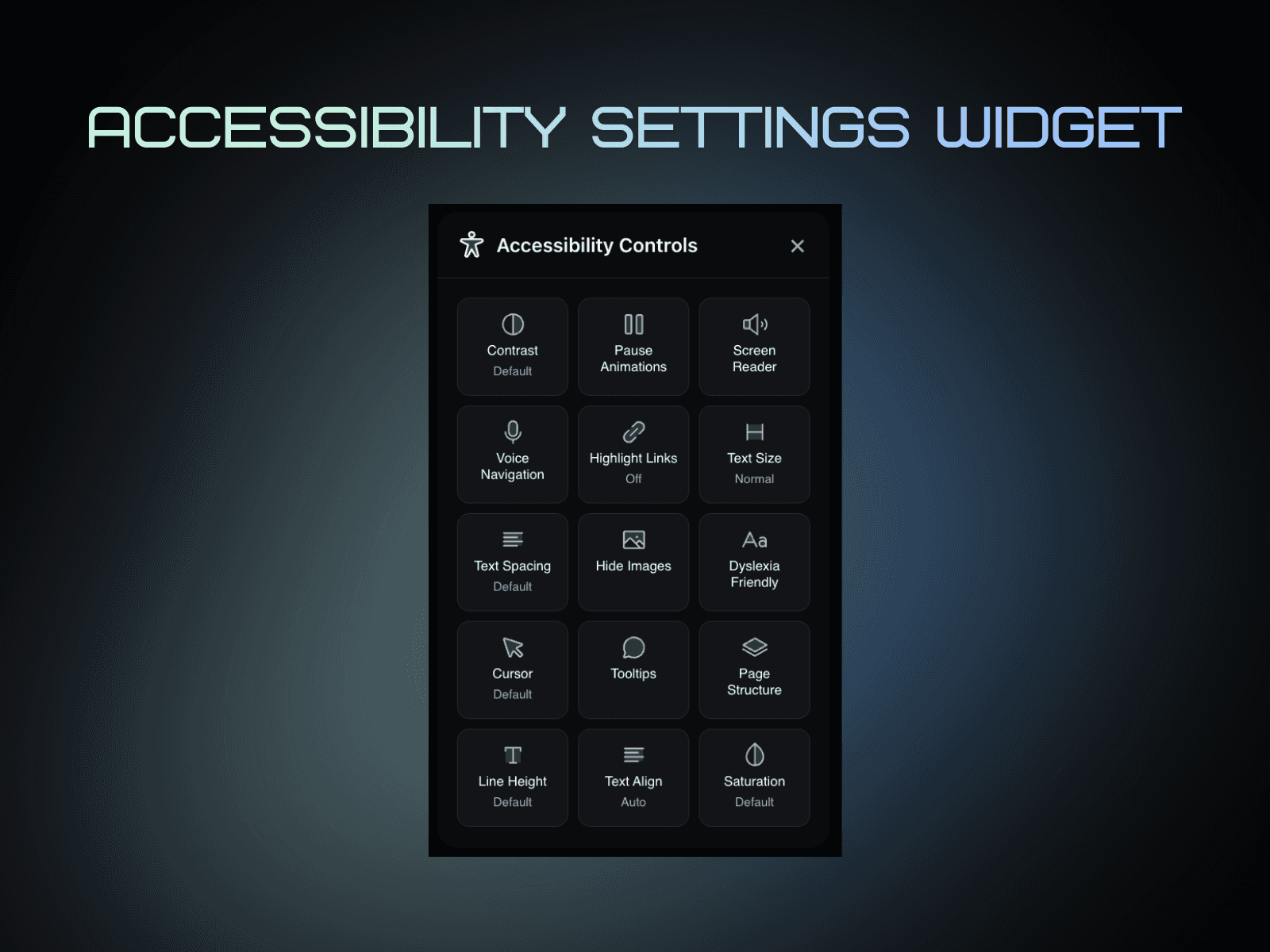
Accessibility Widget
Accessibility for Framer can publish an Accessibility Widget onto your live Framer site. This widget is an accessibility settings popup window for visitors—so users can adjust readability and navigation in real time while browsing your site.
What it does
Adds an on-page button/control that opens an Accessibility Settings popup
Lets visitors personalize how your site looks and behaves for accessibility
Applies changes instantly on the page
Runs entirely in the visitor’s browser (client-side)
Widget Appearance & Placement
The widget is designed to stay out of the way and fit your site:
Configurable placement (corner/edge positioning depending on your setup)
Customizable visual styling to match your brand
What visitors can adjust
The widget groups features into four categories:
Visual Adjustments (visibility/comfort)
Reading Aids (reading support)
Navigation Helpers (moving through the page more easily)
Content Control (reduce distractions / simplify the experience)
Exact options depend on the version and configuration you publish.
How visitors use it
Visitor clicks the widget button on your site
The Accessibility Settings popup opens
Visitor toggles settings on/off or adjusts controls
Changes apply immediately
Visitor closes the popup and continues browsing with their preferences
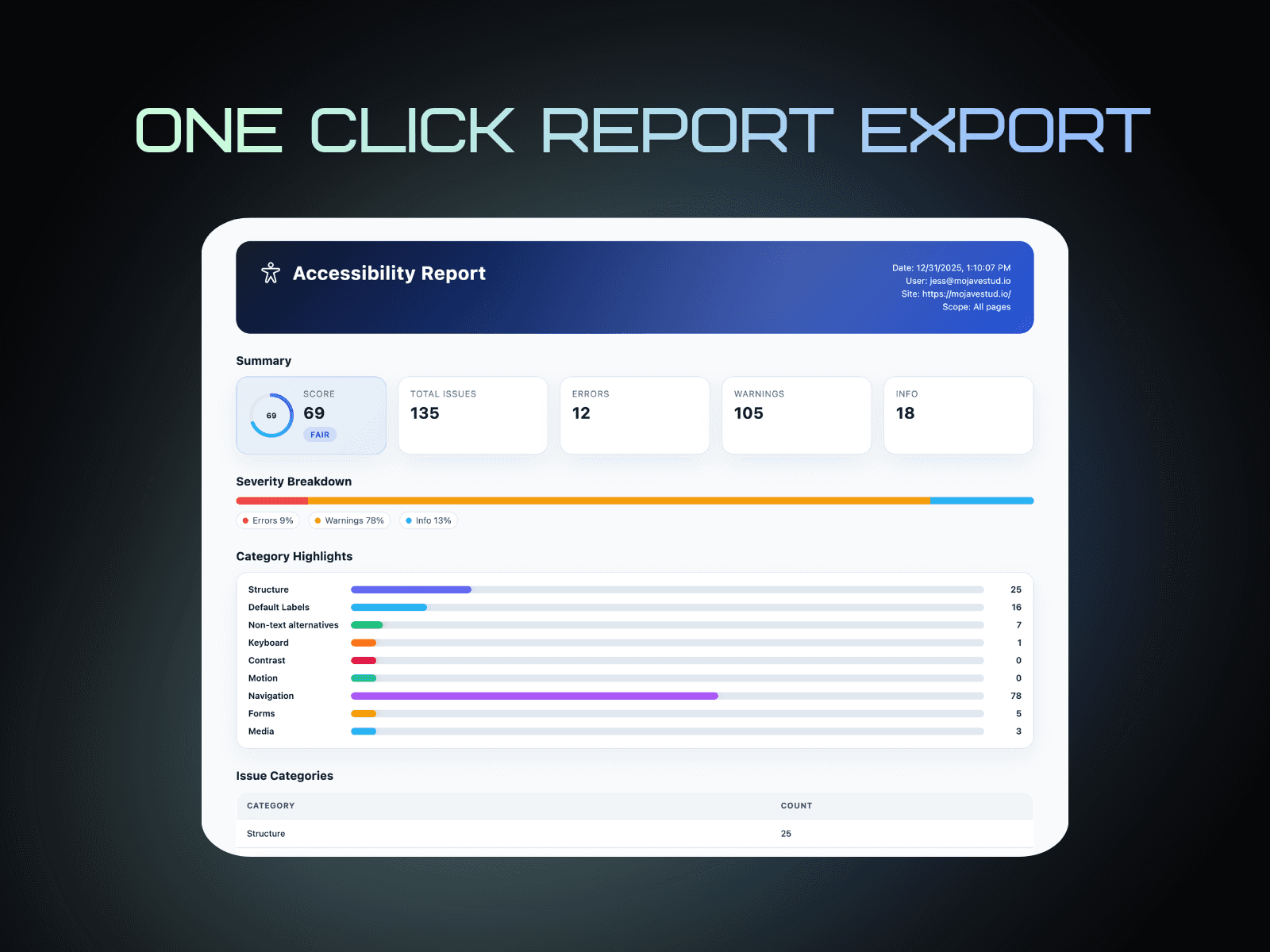
Email Alerts
Email Alerts notify you when accessibility issues appear or return, so regressions don’t slip through during content updates and redesigns.
How alerts work
You configure recipient email address(es)
When scans detect new/regressed issues (based on your settings), the plugin sends a notification so you know to re-check before publish
$29 - Purchase a License
Accessibility for Framer is a small part of the larger Accessibility Studio package. The Framer add on is only for ONE SITE, If you intend to scan more than one site, please consider purchasing a monthly license at accessibilitystud.io/pricing
Run a scan
Open Accessibility for Framer
Click Scan
Review the results list
Each issue is designed to be actionable:
what’s wrong
where it is (linked to a layer when possible)
how to fix it (action button or guided steps)
Fix issues fast
Click an issue
Use focus/select layer to jump to the element in the canvas
Fix it in Framer (or use the built-in action if available)
Re-scan to confirm the issue is cleared
Image alt text
Flags missing or weak alt text.
Fix: select the image → add meaningful alt text
Decorative image: mark decorative / empty alt
Heading structure
Flags missing H1, multiple H1s, and skipped heading levels.
Fix: ensure one clear H1; keep hierarchy in order (H1 → H2 → H3)
Visual headings without semantic tags
Flags text styled like a heading but not tagged as one.
Fix: select the text layer → set the correct heading tag
Contrast and page-level checks
Flags potential contrast issues and other page-level concerns.
Fix: adjust colors for readability; re-scan
Accessibility Widget
Accessibility for Framer can publish an Accessibility Widget onto your live Framer site. This widget is an accessibility settings popup window for visitors—so users can adjust readability and navigation in real time while browsing your site.
What it does
Adds an on-page button/control that opens an Accessibility Settings popup
Lets visitors personalize how your site looks and behaves for accessibility
Applies changes instantly on the page
Runs entirely in the visitor’s browser (client-side)
Widget Appearance & Placement
The widget is designed to stay out of the way and fit your site:
Configurable placement (corner/edge positioning depending on your setup)
Customizable visual styling to match your brand
What visitors can adjust
The widget groups features into four categories:
Visual Adjustments (visibility/comfort)
Reading Aids (reading support)
Navigation Helpers (moving through the page more easily)
Content Control (reduce distractions / simplify the experience)
Exact options depend on the version and configuration you publish.
How visitors use it
Visitor clicks the widget button on your site
The Accessibility Settings popup opens
Visitor toggles settings on/off or adjusts controls
Changes apply immediately
Visitor closes the popup and continues browsing with their preferences
Email Alerts
Email Alerts notify you when accessibility issues appear or return, so regressions don’t slip through during content updates and redesigns.
How alerts work
You configure recipient email address(es)
When scans detect new/regressed issues (based on your settings), the plugin sends a notification so you know to re-check before publish
Copyright Mojave Studio 2025 – mojavestud.io
Built with ❤️ for the Framer design community
